Sharing Collections
This page describes the sharing model introduced in ELN version 4.0. Readers coming from version 3 or earlier should see Upgrading from version 3 at the end of this page — the terminology changed, and synchronized collections no longer exist.
What sharing is
A collection groups samples, reactions and other elements. Sharing is how a colleague sees or works on that group without anything being exported or duplicated.
When a collection is shared, nothing is copied. The owner grants access to their own collection, and the people it is shared with see that very collection — live — under their Shared with me. Anything the owner adds to it later is visible to them immediately, and anything they are allowed to change, they change in the owner's collection.
A collection can be shared with individual users and with groups. An owner always keeps full control of the collections they own: sharing never lets anyone delete their data (see What sharing never does).
The permission ladder
Every share carries one permission level. The levels form a ladder — each level includes everything below it — so the owner only ever picks the highest thing that person should be able to do.
| Level | Name | The recipient can… |
|---|---|---|
| 0 | Read elements | Open the collection and view its elements. Nothing can be changed. |
| 1 | Edit elements | …and change the content of existing elements. For the element types that keep a history — samples, reactions, wellplates, screens, research plans and device descriptions — every edit is recorded there. |
| 2 | Add elements | …and create new elements in the collection, and move or assign existing elements into it. |
| 3 | Remove elements | …and take elements back out of this collection. The element itself is not deleted — it stays in its owner's other collections. |
| 4 | Manage shares | …and manage who else this collection is shared with, up to their own permission level. |
| 5 | Pass ownership | …and accept full ownership of the collection, if it is offered. See Passing and taking ownership. |
Because the levels are cumulative, Add elements (2) already includes Read and Edit, and Manage shares (4) includes everything from Read up to Remove.
From Add elements upward the menu offers Import samples to collection, but in versions 4.0.0 to 4.0.2 the import only accepts collections the user owns, so the attempt ends in an error. Importing into a collection of one's own and then assigning the samples across works in the meantime.
Which level to pick
-
"They should just look at the results." → Read elements. They can browse and open everything, but cannot change a thing.
-
"We are writing up together and they should correct values in my samples." → Edit elements. They can update existing elements, but not add or remove any. All their changes appear in each element's history.
-
"My collaborator should contribute their own samples and reactions to our joint project." → Add elements. This is the level a project collaborator usually needs.
-
"Let them tidy up the collection and take out what does not belong." → Remove elements. Nothing is destroyed: an element they remove still lives in its owner's other collections.
-
"I want a co-lead who can also decide who else joins the project." → Manage shares. They can share the collection onward and adjust other people's access — but never above their own level.
-
"This is really their project now — hand it over." → Pass ownership. A two-step handover, not an instant transfer.
Detail levels
The permission level says what someone may do. A second, independent setting — the detail level — says how much of each element they get to see. It is set per element type in the same dialog.
| Element type | Detail levels |
|---|---|
| Sample | 0 mass and external label · 1 adds molecule and structure · 2 adds analysis results and descriptions · 3 adds analysis datasets · 10 everything |
| Reaction | 0 description, observation and materials · 10 everything |
| Wellplate | 0 wells · 1 adds readouts · 10 everything |
| Generic (LabIMotion) element | everything, the only option offered |
| Screen | 0 name, description, conditions and requirements · 10 everything |
Research plans, cell lines, device descriptions and sequence-based macromolecule samples are always shared complete.
Granting Edit elements is not on its own enough to let someone edit. Editing a shared element also requires the full detail level (10) for that element type. This is deliberate: a user who cannot see a field must not be able to overwrite it with a placeholder. If a collaborator reports that saving does nothing, check the detail levels before the permission level.
Role shortcuts
The share dialog offers a Role dropdown that pre-fills both the permission level and the detail levels. It can be used as a starting point, or both can be set by hand.
| Role | Permission level | Typical use |
|---|---|---|
| User | Remove elements | Works in the collection day to day: adds, edits, unlinks. |
| Partner | Edit elements | Edits existing content; does not add new elements. Its detail levels reach full only for samples and wellplates, so a Partner cannot edit reactions or screens. |
| Collaborator | Read elements | Broad but shallow read access across element types. |
| Reviewer | Read elements | Read access weighted toward reactions, for sign-off. |
| Supervisor | Manage shares | Administers who else has access, on the owner's behalf. |
Changing the permission or detail levels by hand clears the selected role — the role is only a preset, not a stored property of the share.
Sharing a collection
- In My Collections, open the collection's menu — in the collection bar or in collection management — and choose Add share.
- Search for and add the people or groups to share with. Several can be added at once; they all receive the settings below.
- Pick a Role, or set the Permission level and the per-type detail levels by hand.
- Optionally tick Apply these share settings to all sub-collections to cascade the same access down the whole branch. This only reaches sub-collections the person doing the sharing is allowed to administer, and each one still passes its own checks. A Pass ownership share never cascades, whatever the checkbox says.
- Confirm. Everyone added is shown a notice that the collection has been shared with them, and it appears under their Shared with me when their tree next refreshes — a few seconds later, not instantly.
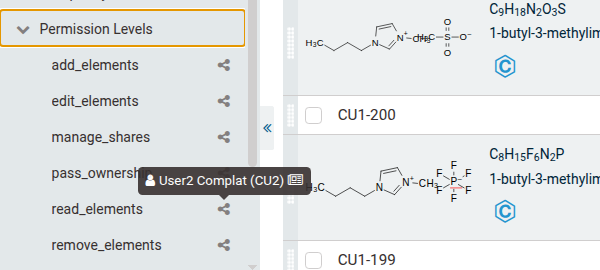
A shared collection stays where it is, in its owner's My Collections, marked with a share icon. Hovering that icon lists who it was shared with and the permission each of them holds; detail levels are not shown there.
Sharing a selection as a new collection
Elements can also be shared directly, without preparing a collection first:
- Select the elements in a list, then choose Share from the selection actions.
- Give the new collection a name. Left empty, it falls back to My project with <name>.
- Optionally choose a parent collection, from among the user's own collections. Left empty, it is created at the top level.
- Add the people or groups and set their permission level, as above. There is no cascade option in this dialog.
- Confirm with Create Shared Collection. One collection is created per recipient; if several are named and a custom name was given, each gets that name with the recipient appended.
Editing and revoking a share
Open the collection's menu and choose Manage shares — offered once the collection has at least one share. Each recipient is listed with their name, a person or group icon, and their current permissions.
- edit reopens the share dialog. A cascading edit only updates sub-collections that are already shared with that person; once the cascade box is ticked, a second option appears — Also include sub-collections not already shared with this user — which extends the share to the rest of the branch.
- The red button carrying a share and a trash icon revokes the share. There is no confirmation step. Access ends at once, and the collection leaves that person's tree when it next refreshes. Nothing of the owner's is deleted.
Recipients can also step away themselves: in collection management, under Collections shared with me, the collection's menu offers Remove my access, which asks for confirmation. The owner is not notified, and can share it with them again later.
Where access comes through a group, there is no personal share to remove, so Remove my access is not offered — the only way to drop that access is to leave the group. If a direct share and a group share both apply to the same person, the higher of the two levels wins.
Shared with me
Everything shared with a user is grouped by owner, under a row bearing that person's name, and mirrors the owner's real folder structure.
If a shared sub-collection's parent is not shared with the recipient, the sub-collection moves up to the nearest ancestor that is shared with them, rather than being hidden under a folder they cannot see. Where no ancestor is shared at all, it sits at the top level under its owner. Either way the branch is truncated at the point where their visibility ends — never hidden.
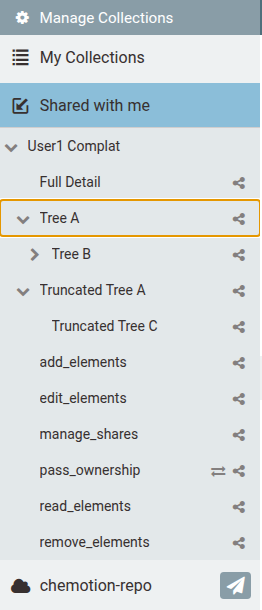
In this example Tree A keeps its sub-collection Tree B, because both are shared. Under Truncated Tree A, the collection Truncated Tree C appears directly, because the level between them was not shared.
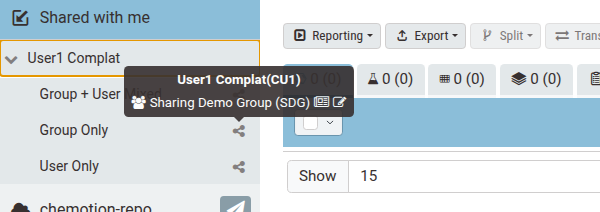
Hovering the share icon on a shared collection shows how it reaches the user: their own share, and each of their groups' shares, so a collection reached through a group names which group.
What a recipient cannot do
Regardless of permission level, a shared collection remains the owner's. A recipient cannot:
- rename, move, reorder or delete it,
- create a sub-collection inside it,
- edit its metadata or publish it via RADAR.
Those actions belong to the owner alone. What a recipient can do is set by the permission level, plus rejecting their own share and — with Manage shares — administering its share list.
Managing shares as a delegate
A collection shared at Manage shares or above lets the recipient administer its share list themselves, from Shared with me, without asking the owner. Add share and Manage shares appear in the collection row's ⋮ menu, just as they do for an owner.
Two limits always apply: a delegate can neither create, change nor revoke a share above their own permission level — so a delegate holding Manage shares cannot hand anyone Pass ownership, nor remove someone who holds it — and a collection can never be shared back to its own owner.
Passing and taking ownership
Transferring a collection is a deliberate two-step handshake:
- Offer. The owner shares the collection with one specific person at the Pass ownership level. Ownership can only be offered to a single person — never to a group, and the dialog says so — and a system collection can never be offered. The dialog also warns that the transfer will apply to every sub-collection.
- Accept. That person sees a swap icon on the collection in Shared with me. Clicking it asks them to confirm taking ownership of the collection and all its sub-collections. An offer that reaches someone only through one of their groups cannot be accepted — it has to be made to them personally.

Afterwards:
- The new owner has full control of the collection and its whole subtree, which is re-rooted at the top level of their own collections.
- The former owner keeps working access where the new owner already had a share: on the transferred collection, and on any sub-collection that had been shared with the new owner, they are left a Manage shares delegate at full detail. On sub-collections that were never shared with the new owner they are left with no access at all.
- The elements move with the collection into the new owner's All. An element that is still in one of the former owner's other collections stays with them too — it is then in both people's collections.
Exporting a shared collection
Collection management can export collections as a ZIP archive, and the export dialog lists Shared with me alongside the user's own collections.
A collection shared with a user can only be exported if they hold the full detail level for every element type. Otherwise the whole request is refused with a 401 — and the refusal covers the entire selection, so one collection short of full detail stops the others going out with it. An export at a reduced detail level would silently produce an incomplete archive.
What sharing never does
- It never lets someone delete another user's elements. Destroying an element is reserved for its owner. Someone with Remove elements can only unlink an element from the shared collection; the element and its data stay safe in the owner's own collections.
- "Remove from all Collections" only removes from collections the user owns. It unlinks the selection from their own collections and deletes only the elements left with no collection at all. It never reaches into another owner's collection, including one shared with them.
- The rules apply to every element type alike — research plans, cell lines, device descriptions and sequence-based macromolecule samples follow the same checks as samples, reactions, wellplates and screens.
- The owner always keeps full control, no matter which levels are handed out.
Upgrading from version 3
Version 4 replaced two separate mechanisms — shared collections and synchronized collections — with the single sharing model described on this page.
| Version 3 | Version 4 |
|---|---|
| Synchronized collection | gone — every share now behaves the way synchronized collections used to: the recipient sees the live collection |
| Shared collection (a separate collection created for the recipient) | A share on the owner's own collection; the recipient sees the original. The separate copies made in version 3 were handed back to their owner and gathered under My projects with others |
| Shared by me and Synchronized with me tree branches | gone — shared collections stay in My Collections with a share icon. Collections migrated out of them are gathered under a new My projects with others |
Permission Read / Write / Share / Delete / Import Elements | Read elements / Add elements / Add elements / Remove elements / Remove elements |
| Unshare | Manage shares → delete (owner) or Remove my access (recipient) |
The levels were renamed and reordered so that they now run strictly from least to most powerful. Each migrated share kept the capabilities it had: where version 3 already allowed creating elements, the share now sits at Add elements, and nothing gained the right to destroy. Shares that had no detail level recorded were given the full level. Nothing needs to be re-shared.
Note that the two new rungs, Edit elements and Manage shares, are not produced by the upgrade at all — no migrated share lands on either, and they exist only where someone grants them deliberately afterwards.
Two changes are worth knowing about: destroying an element is now owner-only — a collaborator who could previously delete can now only unlink — and creating an element now requires Add elements rather than edit access.