Fields
A Field can be thought of as a subcomponent within a layer. It encapsulates a single piece of data or a specific input/output element. Multiple "Fields" can coexist within a single "Layer," each contributing its unique properties to the layer's overall functionality.
Create a Field
After creating a layer, an input field with a hint "Input new field name" appears next to the layer name. Simply enter the desired name for the field, ensuring that it consists of letters, numbers, and/or underscores ('_'). Then, click the button to create the new field.

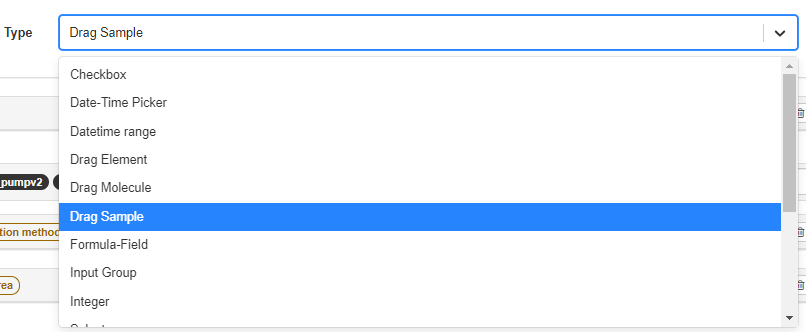
The default field type is a Text field. Change the field type using the dropdown menu. Depending on the field type, different options are available. Designers can refer to the Available Field Types to find the right field type for their needs.
Change the order of fields by clicking the or arrow-button in the field heading.

Field Attributes
The attributes are listed below in the order presented within the user interface.
Field Name
A distinctive identifier within the field. It won't be editable once the layer is created.
Term(Ontology Terminology)
A terminology used to define this data field, ensuring standardized and consistent definitions across templates. A link to the definition and the terminology service is provided for users.
If the list is empty, please check with the administrator whether the ontology service is correctly configured. (See Allowing access to Terminology Service)
YouTube will track your interaction with them.
Designer - Linking an Ontology Term to a Field
Display Name
A more readable and understandable name presented to end-users, helping them recognize and understand the layer they are interacting with.
Hover Info
A message is shown when hovering over the field.
Type
The Type of a field refers to the category or format of data that a particular field can store or represent. It defines the nature of the information that can be input or stored within that field.
🎯 Check out the Available Field Types
Has Its Own Line
Indicates this field will take a single row. Not applicable when the type is Datetime range or Table.
Topics
Restriction Setting
This works similarly to the Restriction Setting function in the Layers. When a restriction is applied, the field is hidden. It will only be shown when the criteria are met. If multiple restrictions are applied, the field will be displayed when any one of them is matched.
Types
17 items
Dummy
A Dummy field serves as a placeholder to occupy space within a column and remains invisible to users. This can be a helpful strategy in certain template designs.