User Interface
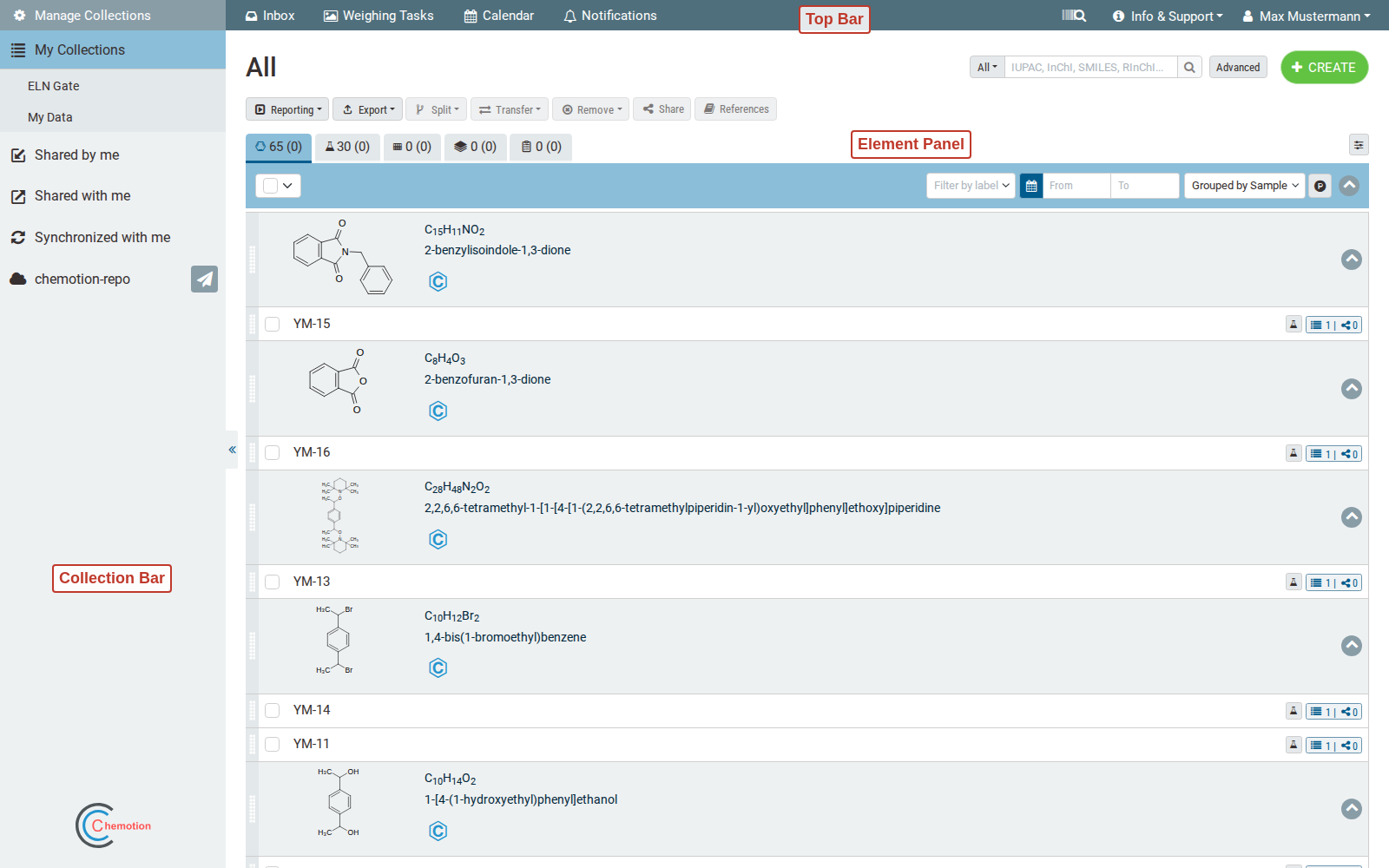
The Chemotion ELN consists of different panels that are combined in the main application page:
Main Page
Top Bar
The top bar spans the top of the browser window. On its left it gives quick access to the Inbox, Weighing Tasks, the Calendar and Notifications. On its right it holds the search field, the Info & Support menu and the user menu (where users can manage their account and log out).
Collection Bar
The collection bar is located on the left below the top bar and is used to navigate through the collections. Its entries are Manage Collections (see below), My Collections, Shared by me, Shared with me, Synchronized with me and the connected repository (chemotion-repo). The collection bar can be collapsed and expanded with the toggle on its right edge.
Collection Management
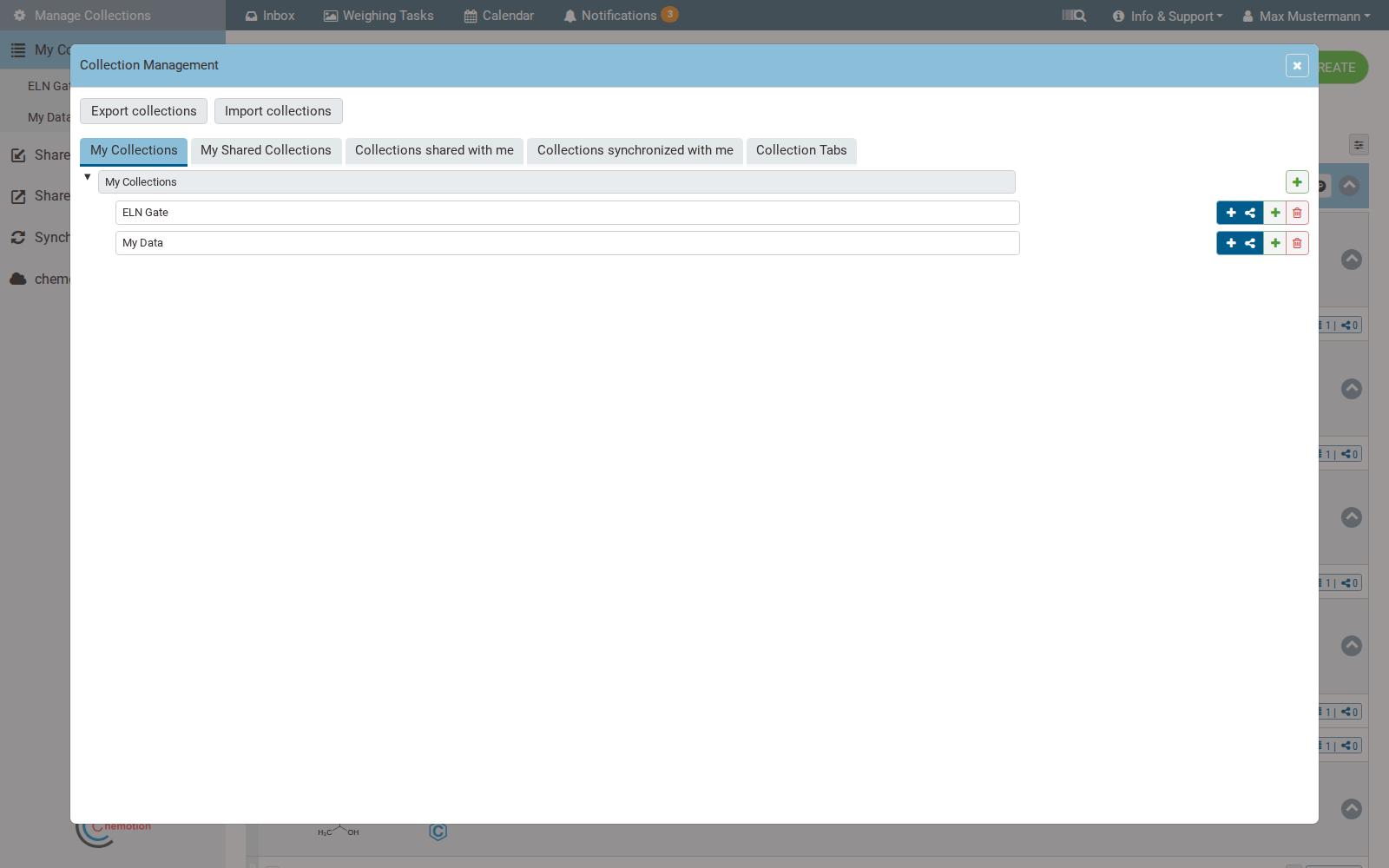
Collection management is opened with the Manage Collections button at the top of the collection bar. It opens the Collection Management window, which enables the creation, deletion and organization of collections, as well as the import and export of collections and the configuration of collection tabs. The window is organized in the tabs My Collections, My Shared Collections, Collections shared with me, Collections synchronized with me and Collection Tabs.
Element Panel
The element panel is to the right of the collection bar. Tabs at the top let users switch between the elements Sample, Reaction, Wellplate, Screen and Research Plan assigned to the selected collection; each tab also shows the number of contained elements. Above the element list a toolbar provides the actions Reporting, Export, Split, Transfer, Remove, Share and References, and the green CREATE button is used to add new elements. The list can be filtered and grouped using the controls below the toolbar.
Users can find more details in the Elements section.
Detail Modal
The detail modal or detail window is opened by clicking on the desired element. It shows the information which are stored on the corresponding element or are available through databases. The modal / window can be set to full screen mode.
Detail Tab
To organize the information within the detail modals, tabs were introduced. These enable the information to be structured and displayed as folders.
Elements
SamplesSamples are the smallest organizational unit of this Chemotion ELN. They describe the physical unit of a chemical compound used for a synthesis or other projects. The sample is described by e.g. the molecular structure, the amount and the properties of the compound used (such as the purity). If a chemical compound with the same molecular structure is used several times, several samples are generated, each with the same molecular structure as a feature.ReactionsReactions form the core of the Chemotion ELN, as reactions can be used to plan the chemists' experiments. The reactions are characterized by the use (starting material, reagents) and the receipt of samples (products).WellplatesSeveral samples can be arranged in wellplates so that they can be combined according to an application in biology.ScreensA screen is the overview of a biological experiment that is carried out with several samples (usually organized by wellplates).Research PlanA research plan is a generic element that can be used in a flexible manner to describe in particular processes. The research plan combines functions for text, tables, images and other information and allows the assignment of other elements such as molecules and reactions.OthersThe Chemotion ELN in its first, pure chemistry version included only the elements described above. In the meantime, a more flexible use of the Chemotion ELN allows the definition of additional elements which can then be added to the Chemotion ELN by the supervising admin.
Actions
Split:Split is an action that can be carried out according to the physical division of a sample into subsets (a certain amount of a chemical compound). A split represents the removal of a subset from a sample and depicts this by generating a new sample with the same properties as the original sample. The split action can be traced by numbering the newly created sample based on the original sample.Copy: In contrast to the Split, the Copy action means that a copy of only the molecular structure (including the parameters dependent on the molecular structure such as molecular weight) is made. The copy has no relation to the original sample and can be saved under a new name.