Ketcher
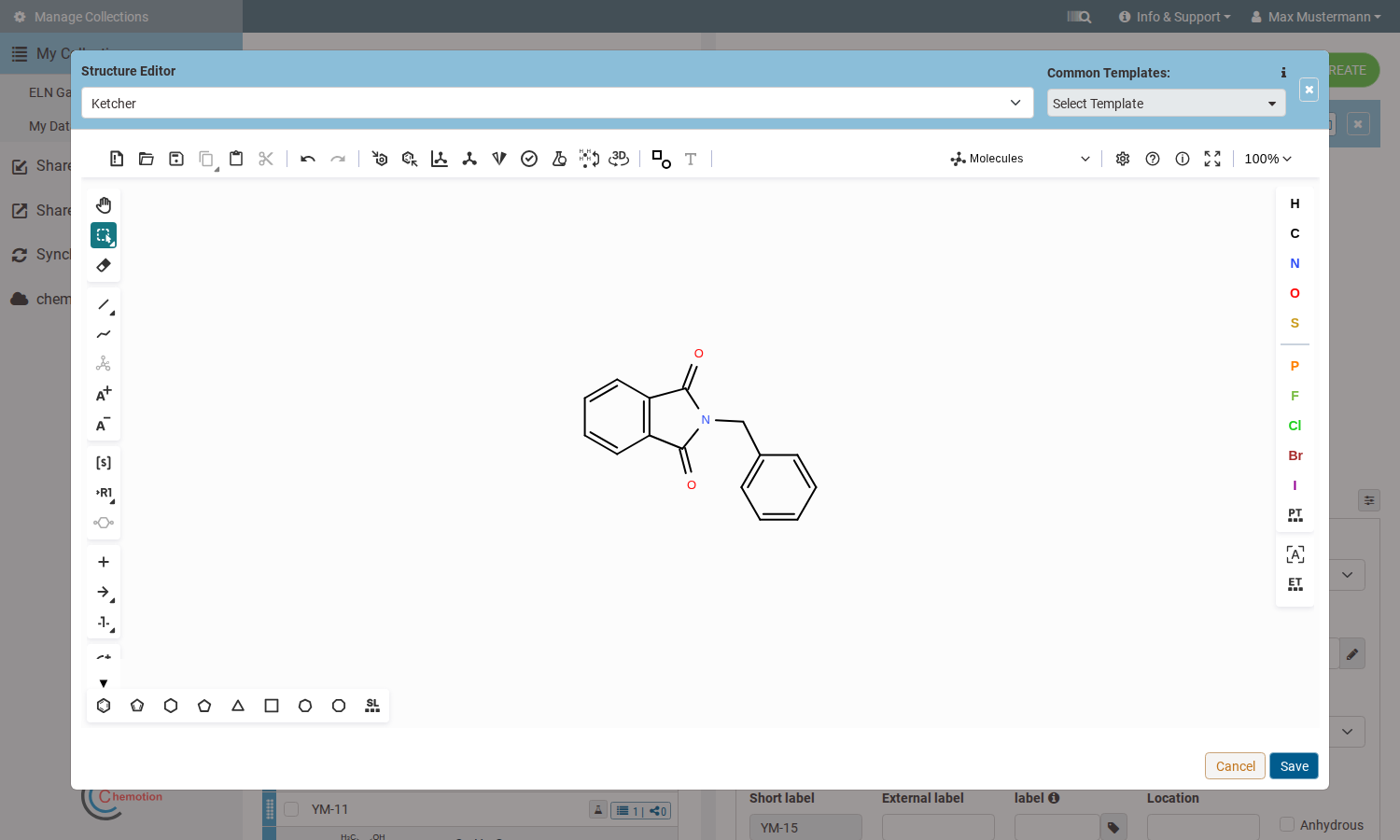
The Ketcher Editor is the primary way to enter chemical structures in Chemotion ELN. It is available via the sample detail modal — click the structure preview area to open it.
EPAM Ketcher is the default structure editor. An administrator must enable it from the administration interface — see Configuration.
The Ketcher Structure Editor covers all the functions needed for chemical work: drawing atoms and bonds, selecting and editing structures, rotating and flipping, applying S-groups and R-group labels, and computing molecular properties. Drawn structures can be cleaned up, copied, and pasted. The view can be adjusted with the zoom control.
Several tools have a small black triangle in the lower-right corner of their icon — this indicates a sub-menu with related tool variants (for example, different bond types or selection modes). Click and hold, or click the triangle, to expand the sub-menu.
Left Toolbar
The left toolbar runs vertically along the left edge of the canvas and contains all drawing and editing tools.
Hand Tool
The Hand Tool  (
(Ctrl+Alt+H) lets users pan the canvas by clicking and dragging. It does not interact with atoms or bonds — it simply moves the view. Use it to navigate around a large structure without accidentally selecting or drawing anything.
Select
The Select tool group  contains three selection modes, switched by clicking the icon:

- Rectangle Selection — drag a rectangle to select everything inside it
- Lasso Selection — draw a free-form shape to select enclosed atoms and bonds
- Fragment Selection — click any atom to select the entire connected fragment it belongs to (all bonded atoms and bonds, but not disconnected elements such as reaction arrows)
The icon always shows the last-used selection mode.
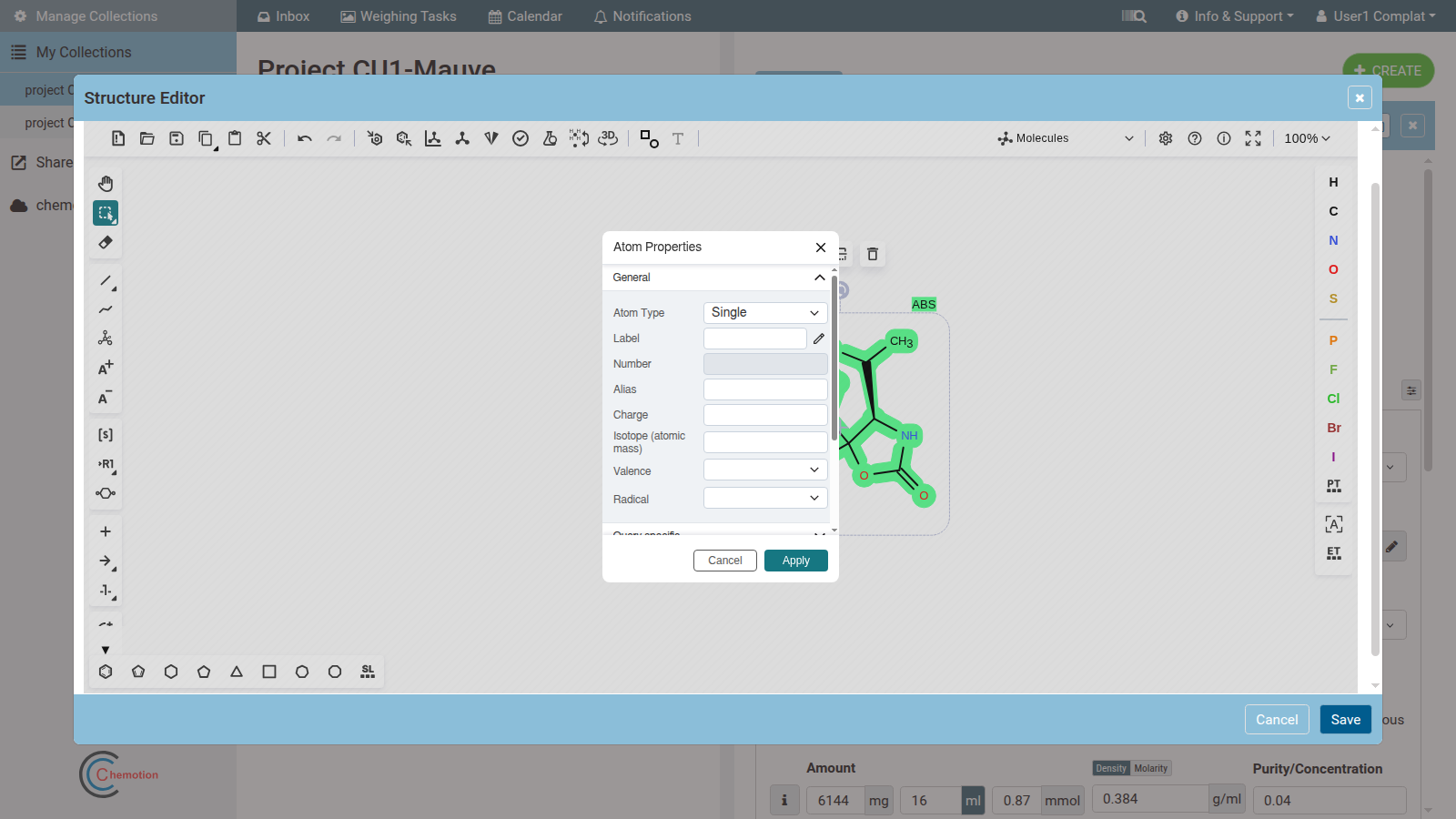
Double-clicking an atom with any selection tool opens the Atom Properties dialog. Here users can modify: Atom Type, Label, Number, Alias, Charge, Isotope (atomic mass), Valence, Radical, and query-specific attributes. Click Apply to confirm the changes.
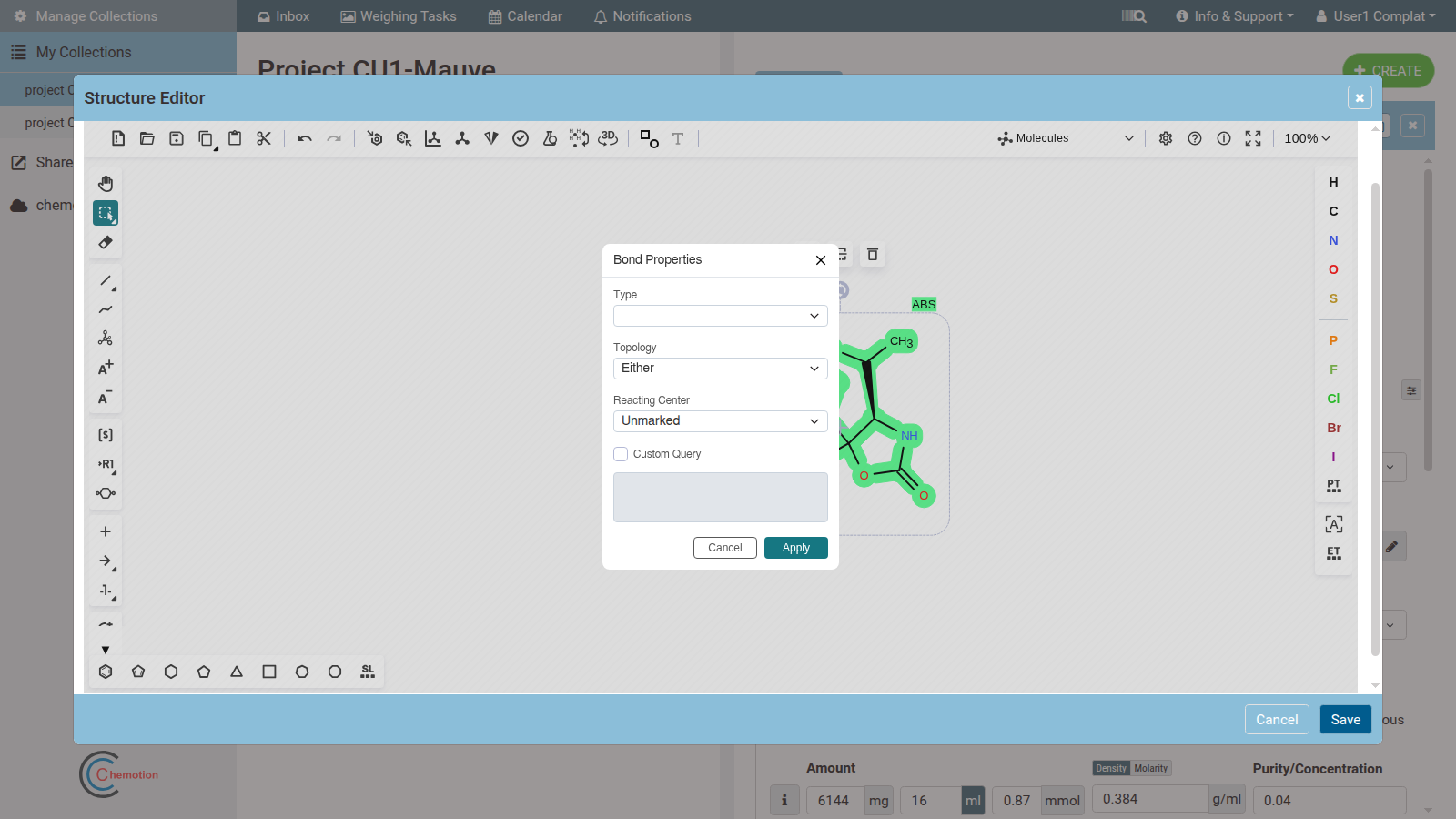
Double-clicking a bond opens the Bond Properties dialog, where users can set the bond Type, Topology, Reacting Center, and a Custom Query. Click Apply to confirm.
Many tools require a selection before they can act — for example Copy and Cut. Some tools like Erase also work directly on clicked elements without a prior selection.
Erase
The Erase tool  removes atoms, bonds, or other elements from the canvas. Click directly on any element to erase it, or drag a rectangle over multiple elements to erase them all at once. Alternatively, select elements first with the selection tool and press Delete or Backspace.
When an atom is erased, all its bonds are erased too. When a bond is erased, the attached atoms remain unless they have no other bonds.
Rotate and Flip
In EPAM Ketcher, rotation and flip controls appear contextually — they are not fixed toolbar buttons.
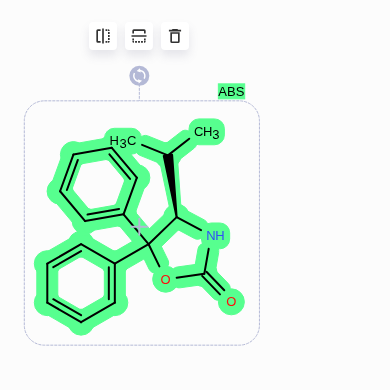
Rotating: Select a structure to reveal a blue rotation handle above the selection box. Click and drag the handle to rotate the selection freely around its center.
Flipping: When a structure is selected, two floating action buttons appear above it:
 Horizontal Flip (
Alt+H) — mirrors the selection left–right (flips around the vertical axis) Vertical Flip (
Alt+V) — mirrors the selection top–bottom (flips around the horizontal axis)
Both controls require a selection to be active. Use any of the selection tools first (see Select).
Bonds
The bonds menu is usually opened by clicking this icon  in the left toolbar. If a different bond type is active, the icon changes to show the active type. All available bond types are shown below.

Key behaviors:
- Single, Double, and Triple bonds are available alongside bonds for coordination, stereochemistry, and aromaticity.
- Drawing a bond that does not start from an existing atom creates a C–C bond by default (e.g. a single bond produces CH₃–CH₃). Starting from an atom assumes a carbon at the other end — replace it using the atom column if needed.
- Clicking an existing bond with a bond tool active changes its type to the selected type.
- For asymmetric bonds (e.g. wedge bonds), re-clicking the bond reverses its direction. Ensure the correct bond type is selected first — otherwise the type changes instead of the direction.
Chain Tool
The Chain Tool  builds a carbon chain quickly by clicking and dragging, without placing atoms one by one. Atom types and bond types can be adjusted individually afterwards using the atom column and bond tools.
Stereochemistry
The Stereochemistry tool  (
(Alt+E) applies enhanced stereochemistry annotations to stereocenters in the structure. After selecting the relevant atoms, the tool opens a dialog where users can assign stereo groups — And, Or, or Absolute — to indicate relative or absolute configuration. This is used to represent mixtures of enantiomers or diastereomers with precision beyond simple wedge bonds.
The Stereochemistry tool is currently disabled in Chemotion ELN v3.12 and appears grayed out in the toolbar.
Charge
The charge of an atom can be changed in one of two ways, both shown in the animation above:
- Using the icons: click
 to add a positive charge, or
  to add a negative charge, then click the target atom.
 - Using text: type the charge directly next to the atom symbol, e.g.
C+orN-.
Either way, the hydrogen count updates automatically to reflect the new valence.
S-Group
The S-Group tool  (
(Ctrl+G) marks a selected set of atoms as an S-group (special group), used to annotate parts of a structure with chemical or query meaning.
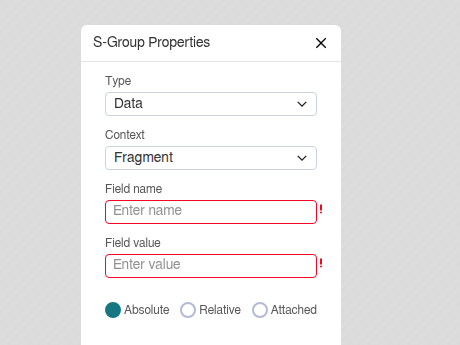
To use it: select the atoms to be grouped, then press Ctrl+G or activate the tool and drag a rectangle around them. The S-Group Properties dialog opens with the following options:
- Type — the kind of S-group: Data, Multiple Group, SRU Polymer, Superatom, or Query Component
- Context — the scope: Fragment, Multifragment, or Bond (availability depends on Type)
- Field name / Field value — for Data S-groups, attach a named data field (e.g. a yield, a structure name, or a custom annotation) to the selected atoms
- Absolute / Relative / Attached — controls how the data label is positioned relative to the group
Click Apply to confirm. The S-group bracket appears around the selected atoms on the canvas.
R-Group Label
The R-Group Label tool  (
(Ctrl+R) assigns an R-group placeholder (R1–R32) to an atom, marking it as a variable attachment point in an R-group query structure.
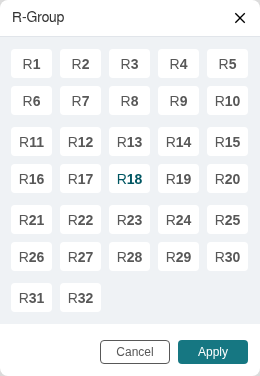
Click the tool, then click an atom on the canvas. The R-Group dialog opens showing R1–R32. Select the desired label and click Apply. The atom is replaced by the chosen R-group placeholder. R-group structures are used in substructure search and combinatorial chemistry workflows.
Monomer (Bead)
The Create a Monomer tool  places a bead symbol on the canvas for solid-phase syntheses. Similar to the bead symbol in ChemDraw, it represents the polymeric carrier material of a solid support. The ELN recognizes this symbol and adjusts the sample input module layout accordingly. The load of the solid support is defined within the sample input model.
The Monomer tool is not available in Chemotion ELN v3.12. Use the Solid Surface Templates in the top toolbar to place solid-support structures.
Reaction Tools
Ketcher provides three tools for drawing reaction schemes:
 Reaction Plus — places a plus sign (
+) between two structures to indicate multiple reactants or products in a single reaction scheme. Arrow Open Angle — draws a reaction arrow between the reactant and product sides of the scheme. Several arrow styles are available via the sub-menu (small triangle in the corner of the icon).
 Reaction Mapping Tool — assigns atom-map numbers to atoms, correlating specific atoms in the reactants with the corresponding atoms in the products. Click an atom in the reactant, then click the corresponding atom in the product to create a mapping pair.
Shape Ellipse
The Shape Ellipse tool  draws an ellipse on the canvas as a visual annotation. Click and drag to size the ellipse. Additional shape tools (rectangle, line) are available in the sub-menu. Shapes do not represent chemical structure — they are used solely for visual markup and highlighting regions of interest.
Add Text
The Add Text tool  (
(Alt+T) places a text label anywhere on the canvas. Click the desired position to open a text input, type the label, then confirm. Text annotations are useful for adding notes, conditions, yield values, or headings to a reaction scheme. The text is part of the canvas and will be included when the structure is saved or exported.
Add Image
The Add Image tool  inserts an image file onto the canvas. Click to open the file picker, select an image (PNG, JPG, SVG), and it will be placed on the canvas. Like text annotations, embedded images are saved and exported with the structure.
Top Toolbar
The top toolbar runs horizontally across the top of the canvas and contains file operations, edit history, clipboard actions, zoom, and structure analysis tools.
Clear Canvas
Clear Canvas  (
(Ctrl+Delete) deletes everything on the current canvas. This action can be undone with Undo.
Open
Open  opens the Open Structure dialog. Structures can be loaded by:
- Pasting text — paste a Molfile, SMILES, InChI, or other supported format directly into the text area
- Uploading a file — use the file picker to browse for a structure file (
.mol,.sdf,.rxn, etc.)
Optionally, the structure can be opened as a clipboard fragment — it will be ready to paste rather than placed on the canvas immediately.
Save As
Save As  opens the Save Structure dialog. Select the desired format from the dropdown, then copy the generated text or download it as a file. Supported formats include:
- MDL Molfile V2000 / V3000
- Daylight SMILES and Extended SMILES
- InChI and InChIKey
- CML, SDF, and RXN
Structures can also be saved directly as a custom template by selecting Template from the format dropdown. Saved templates become available in the Structure Library (bottom toolbar → Templates Library), making them reusable across sessions.
Undo/Redo
Any action in the editor can be reversed with Undo  (
(Ctrl+Z), and a reversed action can be reapplied with Redo  (
(Ctrl+Y / Ctrl+Shift+Z). Multiple undo/redo steps are supported.
Cut/Copy/Paste
A selected structure or substructure can be cut  (
(Ctrl+X), copied  (
(Ctrl+C), and pasted  (
(Ctrl+V) elsewhere on the canvas. A selection must be active before cutting or copying.
Zoom
The zoom level is controlled via the percentage indicator in the top toolbar. Click it to open a dropdown with preset zoom levels, or use the keyboard shortcuts Ctrl++ (zoom in) and Ctrl+- (zoom out). Ctrl+0 resets the zoom to fit the structure on screen.
Clean Up
The Clean Up tool  automatically improves the layout of the structure on the canvas by normalizing bond lengths, angles, and atom spacing. It can be applied to the whole canvas or to a selection only.
Calculated Values
The Calculated Values tool  (
(Alt+C) opens a dialog that displays computed properties for the structure on the canvas:
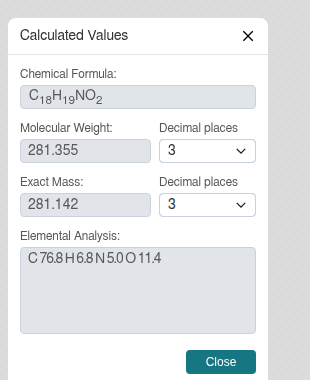
Properties shown include Molecular Weight, Exact Molecular Weight, Molecular Formula, and Elemental Analysis. If the canvas contains multiple disconnected structures, the Largest Fragment values apply to the biggest one. If atoms are selected, the values reflect the selection only; otherwise the entire canvas is used.
Aromatize / Dearomatize
The Aromatize tool  (
(Alt+A) converts alternating single and double bonds in a ring to an aromatic representation (Kekulé → aromatic). The Dearomatize tool  (
(Ctrl+Alt+A) does the reverse, assigning explicit alternating bonds. Both tools operate on the entire canvas or on a selection.
Layout
The Layout tool  (
(Ctrl+L) recalculates the 2D coordinates of the entire structure using an automatic layout algorithm, spreading atoms evenly and untangling overlapping bonds. Use it when a pasted or imported structure has a poor initial layout.
Calculate CIP
The Calculate CIP tool  (
(Ctrl+P) assigns Cahn–Ingold–Prelog (CIP) stereo descriptors (R/S for stereocenters, E/Z for double bonds) and displays them directly on the canvas next to the relevant atoms or bonds.
Check Structure
The Check Structure tool  (
(Alt+S) runs a set of structural validation checks on the current canvas and reports any issues — such as valence errors, overlapping atoms, or ambiguous stereo bonds — in a dialog. Use it to catch drawing errors before saving.
Add/Remove Explicit Hydrogens
The Add/Remove Explicit Hydrogens tool  toggles between showing and hiding explicit hydrogen atoms on the canvas. When hydrogens are added, each hydrogen appears as a labeled atom with a bond. When removed, explicit hydrogens revert to the implicit representation.
3D Viewer
The 3D Viewer  opens a three-dimensional view of the current structure in a separate dialog, generated by converting the 2D drawing to a 3D conformation. Use it for a quick visual check of the structure's spatial arrangement.
Solid Surface Templates
The Solid Surface Templates tool  opens a library of pre-defined solid-support and bead templates. Select a template and place it on the canvas to represent a polymeric carrier in a solid-phase synthesis scheme.
The dialog has Basic and Semantic tabs and organizes templates into three top-level categories:
- Active Phase (Round) — round bead supports, further broken down into Single-compound active phase, Multi-compound active phase, and Promotors
- Support (Rectangle) — flat rectangular solid-support representations
- Body (Rectangle) — inert rectangular carrier bodies
Click a category to expand it, then click a thumbnail to insert the corresponding bead or support onto the canvas. The placed structure includes attachment points where the chemistry can be drawn anchored to the solid support.
Add Label
The Add Label tool  inserts a predefined abbreviation as a chemically meaningful superatom — a shorthand for common functional groups such as Boc, Ts, or Me. Unlike Add Text, which places free-form annotation, an Add Label abbreviation is treated by Ketcher as a single atom group and participates in structure operations (selection, bond attachment, export).
Settings
The Settings button  opens the Ketcher settings dialog, where users can adjust display options such as atom numbering, bond length, stereochemistry display style, and font size.
Fullscreen
The Fullscreen button  expands the Ketcher editor to fill the entire browser window. Press it again (or use
 Escape) to return to the embedded view. Fullscreen mode is especially useful when drawing complex structures that need more canvas space.
Right Toolbar
The right toolbar runs vertically along the right edge of the canvas and provides quick access to the most commonly used atom types, as well as the Periodic Table and generic atom groups.
Atoms
The most frequently used atoms are displayed directly as clickable symbols: H, C, N, O, S, P, F, Cl, Br, I. Click an atom symbol to activate it, then click anywhere on the canvas to place it, or click an existing atom to replace it.
Less common elements can be accessed via the (More) button, which opens the Periodic Table. From there the user can select an Element (a single match), define a List (any element in the list matches in a query), or a Not List (any element not in the list). Generic Groups (such as Reaxys Generics) are also available for query structures.
When an atom is placed on the canvas, it is assigned hydrogen atoms automatically based on its valency. For example, placing carbon C gives CH₄. The hydrogen count adjusts dynamically as bonds are added or the charge is changed. The valency and explicit hydrogen count can be overridden via the Atom Properties dialog (see Select).
Bottom Toolbar
The bottom toolbar is located below the left toolbar panel and provides quick access to ring templates and the built-in structure library.
Rings

The rings toolbar offers quick access to common ring templates: benzene (aromatic), cyclopentadiene (5-membered, one double bond), cyclohexane (6), cyclopentane (5), cyclopropane (3), cyclobutane (4), cycloheptane (7), and cyclooctane (8). All rings contain carbon atoms only, but atoms and bonds can be modified afterwards using the atoms column or bond tools. If a larger ring is needed, open the closest available ring, add new atoms, and close it again with a bond.
Structure Library
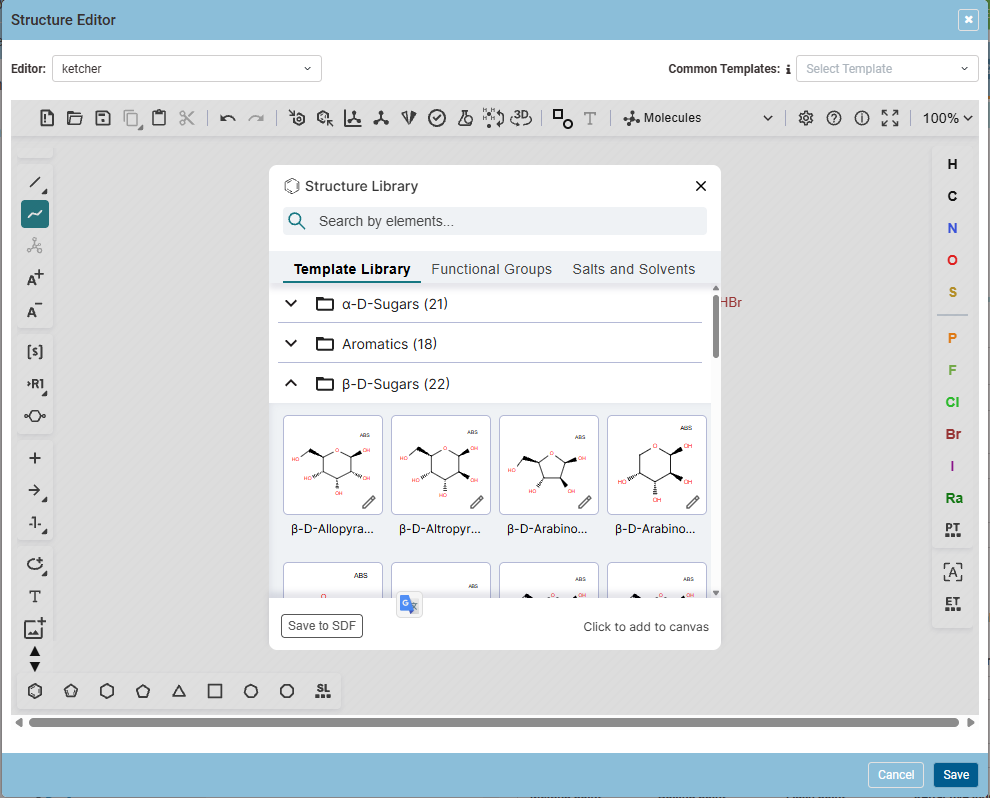
The Structure Library button  at the end of the toolbar opens a searchable collection of pre-defined structures organized into three categories:
- Templates Library — common chemical scaffolds and ring systems for quick insertion
- Functional Groups — frequently used functional group fragments
- Salts and Solvents — standard salt counter-ions and common solvent molecules
Click a structure in the library to select it, then click on the canvas to place it.
If a structure is missing from the library, send a MolFile or ChemDraw file to nicole.jung@kit.edu to request a new template.
Standard Templates
Standard templates are read-only and cannot be modified. They are accessible from the Bottom Toolbar and are organized into the following categories:
- Amino Acids
- Aromatics
- Bicyclics
- Conformers
- Cycloalkanes
- Functional Groups
- Nucleic Acids
- Paracyclophanes
- Schlegel-diagrams
- Solid Supports
Click a category to expand its template list; click again to close it.
To suggest a new template or category, send a MolFile or ChemDraw file to nicole.jung@kit.edu. The Chemotion team will review the structure and add it to the standard templates.
Chemotion ELN records the absolute configuration of point-chiral stereocenters correctly. However, planar chiral compounds (such as Paracyclophanes) are not currently recognized as chiral and will not be differentiated in compound lists or names — even if the correct planar chirality was drawn in Ketcher. Record the chirality explicitly in the Description field for these samples.
This is a limitation of the Chemotion ELN system, not of the Ketcher editor itself.
Keyboard Shortcuts
| Action | Shortcut |
|---|---|
| Hand Tool (pan) | Ctrl+Alt+H |
| Stereochemistry | Alt+E |
| S-Group | Ctrl+G |
| R-Group Label | Ctrl+R |
| Add Text | Alt+T |
| Clear Canvas | Ctrl+Delete |
| Undo | Ctrl+Z |
| Redo | Ctrl+Y / Ctrl+Shift+Z |
| Cut | Ctrl+X |
| Copy | Ctrl+C |
| Paste | Ctrl+V |
| Zoom in | Ctrl++ |
| Zoom out | Ctrl+- |
| Zoom to fit | Ctrl+0 |
| Calculated Values | Alt+C |
| Aromatize | Alt+A |
| Dearomatize | Ctrl+Alt+A |
| Layout | Ctrl+L |
| Calculate CIP | Ctrl+P |
| Check Structure | Alt+S |
| Horizontal Flip | Alt+H |
| Vertical Flip | Alt+V |