Text Templates
This feature is available starting from version 4.0.
Text Templates is where users manage reusable text snippets for editors throughout the ELN. Everyone can create personal templates. Global templates are visible to everyone and editable only by users with the Global Template Editor privilege.
Opening Text Templates
Click Text Templates inside the toolbar settings popover from a text editor. It opens in the same tab. When done, hit Back to return to the editor — the toolbar picks up the changes straight away, no reload needed.
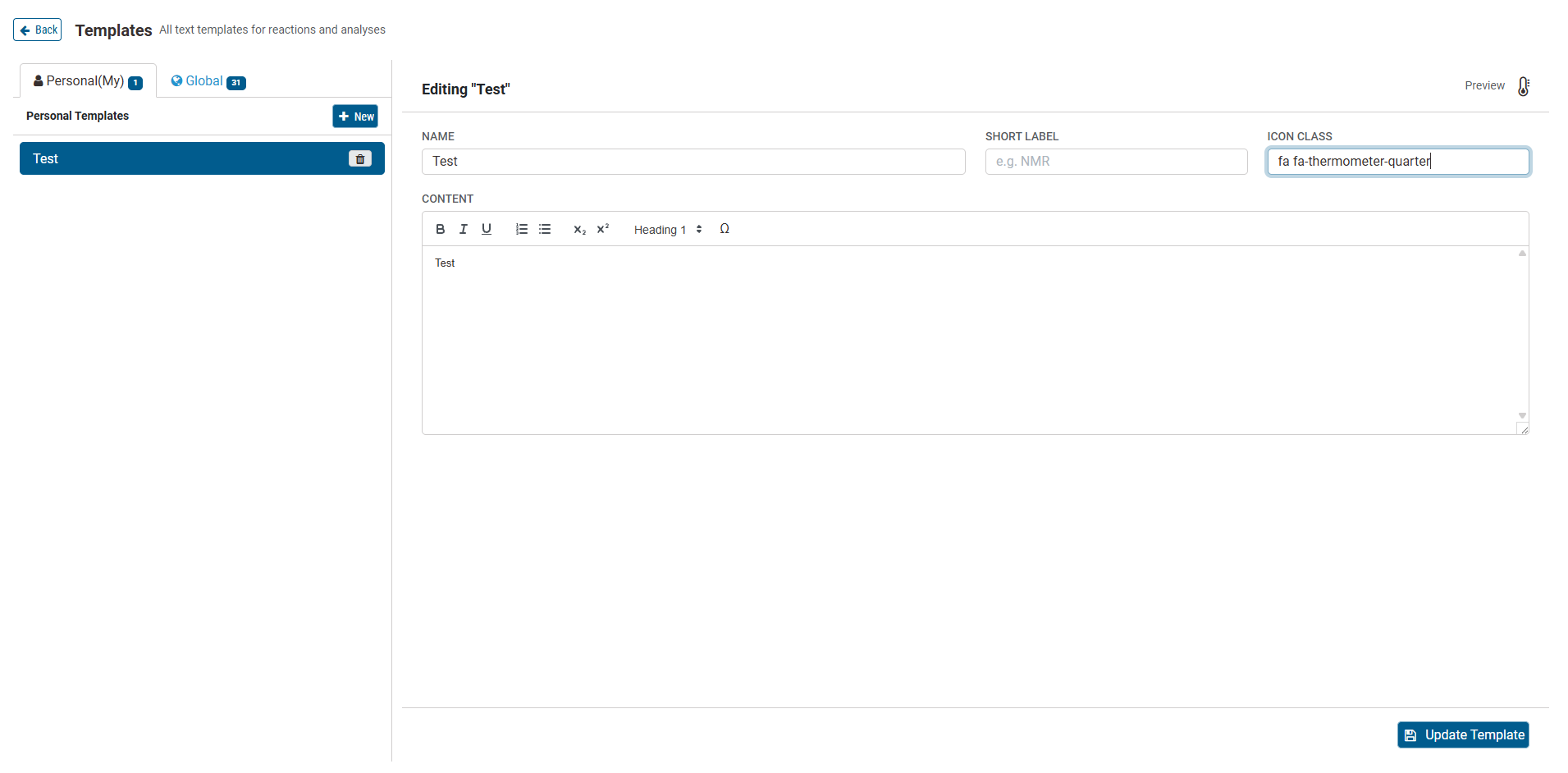
The page has two tabs:
- Personal (My) — the user's own templates, only visible to that user
- Global — shared templates visible to everyone; users can edit them only if they have Global Template Editor rights
Creating a template
- Click New.
- Give it a Name — this is what shows up in the MT dropdown.
- Optionally add a Short Label (shown as text on the toolbar button) and an Icon Class to give it an icon. Icons can come from Font Awesome, or the internal Chemotion ELN icon libraries. Search those libraries for a class name that matches the desired icon. For example:
- a thermometer:
fa fa-thermometer-quarter - a tube:
icon-residue-adsorbed
- a thermometer:
- Write the content in the editor.
- Click Save Template.
The icon shows when the template is pinned directly to the toolbar. When it is added to a dropdown menu, the text label is shown instead.
If a template with that name already exists, the user sees an error and nothing is saved.
Editing a template
Pick a template from the list on the left, make the changes, and click Update Template.
Deleting a template
Click the button next to it in the list.