Finding Data
Version 3 of the Chemotion Repository rebuilt both search pages — Data Publications and the Molecule Archive — around the same faceted sidebar. A result set is narrowed by ticking filters, and each filter states how many entries it matches before it is applied.
Both pages are public: no account is needed to search, browse or open a published record.
Filtering the Data Publications, then the same sidebar in the Molecule Archive
Data Publications
Open Publications from the navigation bar. The page splits into the search and filter sidebar on the left and the result list on the right.
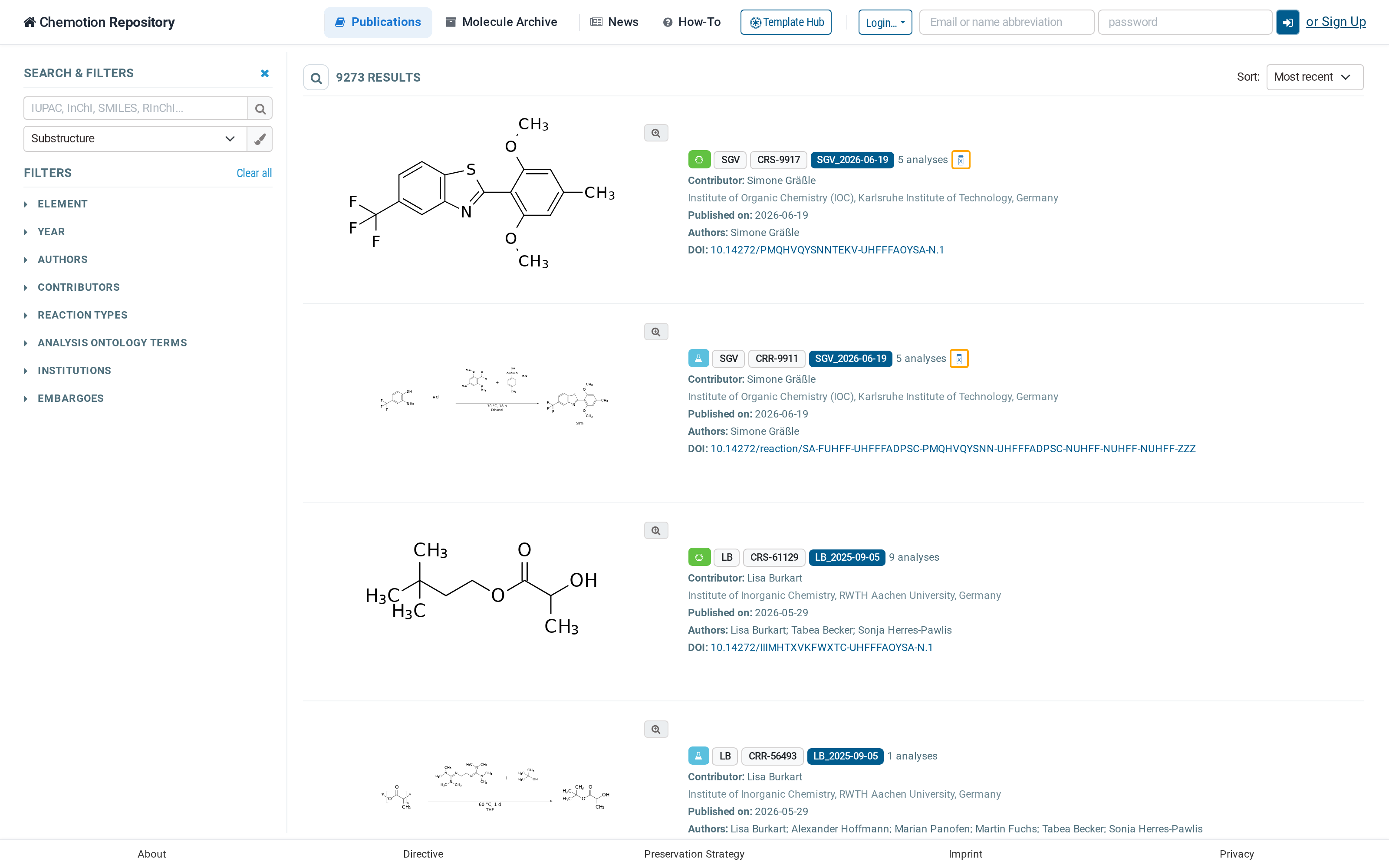
Data Publications — search and filters on the left, results on the right
Searching by structure or identifier
The search box accepts a chemical identifier — IUPAC name, InChI, SMILES or RInChI. The dropdown below it switches between a Substructure and a Similarity search, and the pen button opens the structure editor for drawing the query instead of typing it.
Filters
Every filter group can be expanded, and each entry carries the number of publications behind it. Groups with many entries show only the top eight; Show all reveals the rest. Clear all resets the whole sidebar at once.
| Filter | What it narrows by |
|---|---|
| Element | Sample, Reaction, or Scheme-only reaction |
| Year | year of publication |
| Authors | any author credited on the publication |
| Contributors | the person who submitted the data |
| Reaction types | the reaction ontology term assigned to a reaction |
| Analysis ontology terms | the analysis method, e.g. 1H NMR, IR, mass spectrometry |
| Institutions | the affiliation recorded on the publication |
| Embargoes | the embargo bundle an entry was released with — this group has its own search box, since bundles are numerous |
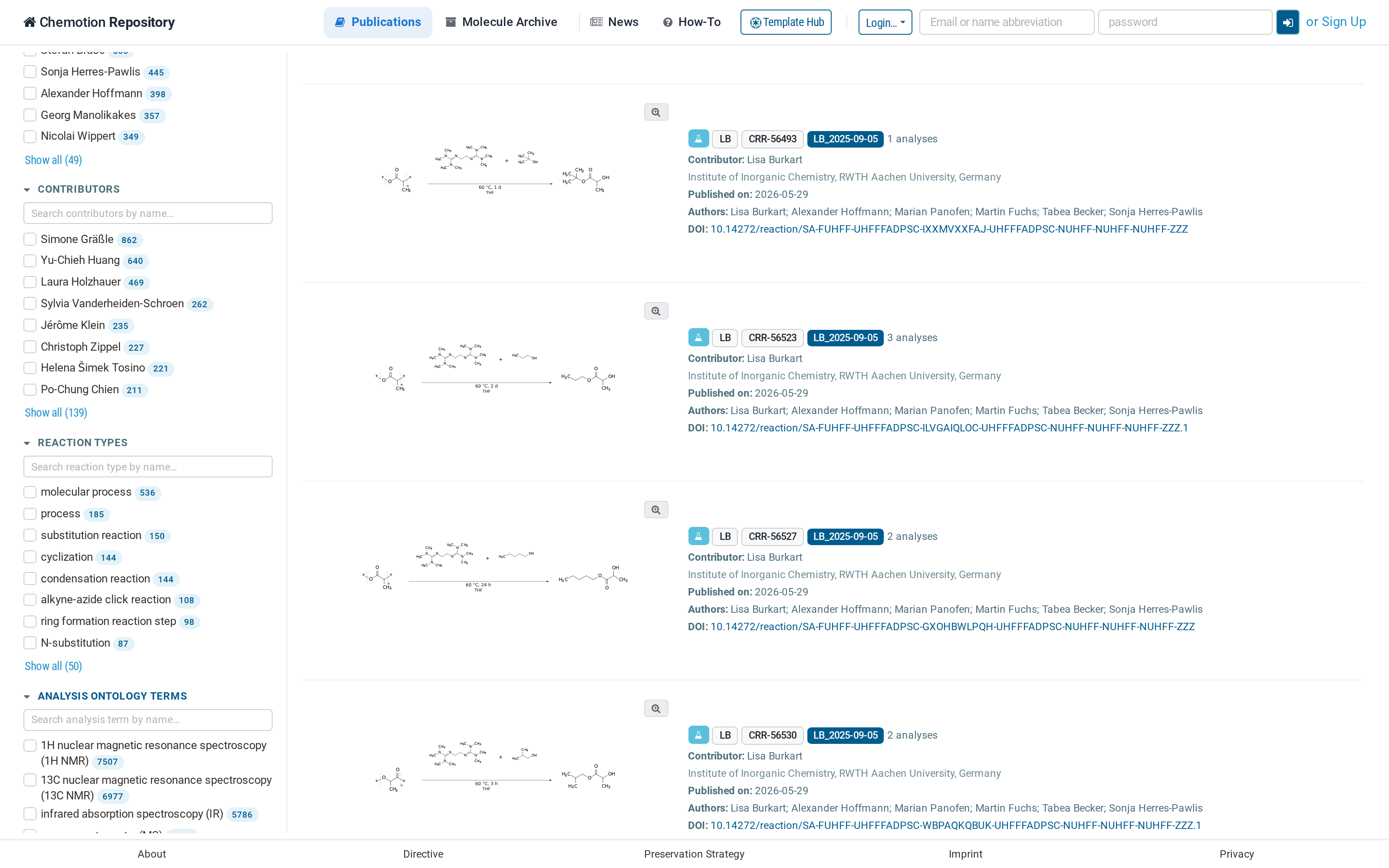
Each filter states how many entries it matches
Counts and results are served from precomputed materialized views rather than being recalculated on every query, which is what keeps the facet counts responsive on a repository of this size. The views are refreshed on a schedule, so a very recently released entry may take a short while to appear.
Reading a result

A single result: badges, identifiers and metadata
Each row shows the structure on the left and, on the right, a row of badges followed by the metadata:
- the element type — a green hexagon for a sample, a blue flask for a reaction
- the contributor's abbreviation, e.g.
SGV - the Chemotion ID —
CRS-…for samples,CRR-…for reactions - the embargo bundle the entry belongs to, e.g.
SGV_2026-06-19 - the number of analyses attached
- an X-Vial badge when a physical sample of the compound was registered to the Molecule Archive (see Physical Samples)
Below the badges are the contributor and their institution, the publication date, the full author list and the DOI.
The magnifier button above the badges enlarges the structure drawing, making it possible to inspect a reaction scheme without leaving the list.
Sorting and paging
Above the results, Sort switches between Most recent and Oldest first. At the foot of the list, Show … per page sets the page size and the Prev / Next buttons move through the pages.
The sidebar can be collapsed with the × in its top corner to give the results the full window width.
Molecule Archive
The Molecule Archive lists the compounds that are physically available through the Compound Platform. It uses the same sidebar, with filters suited to physical samples.
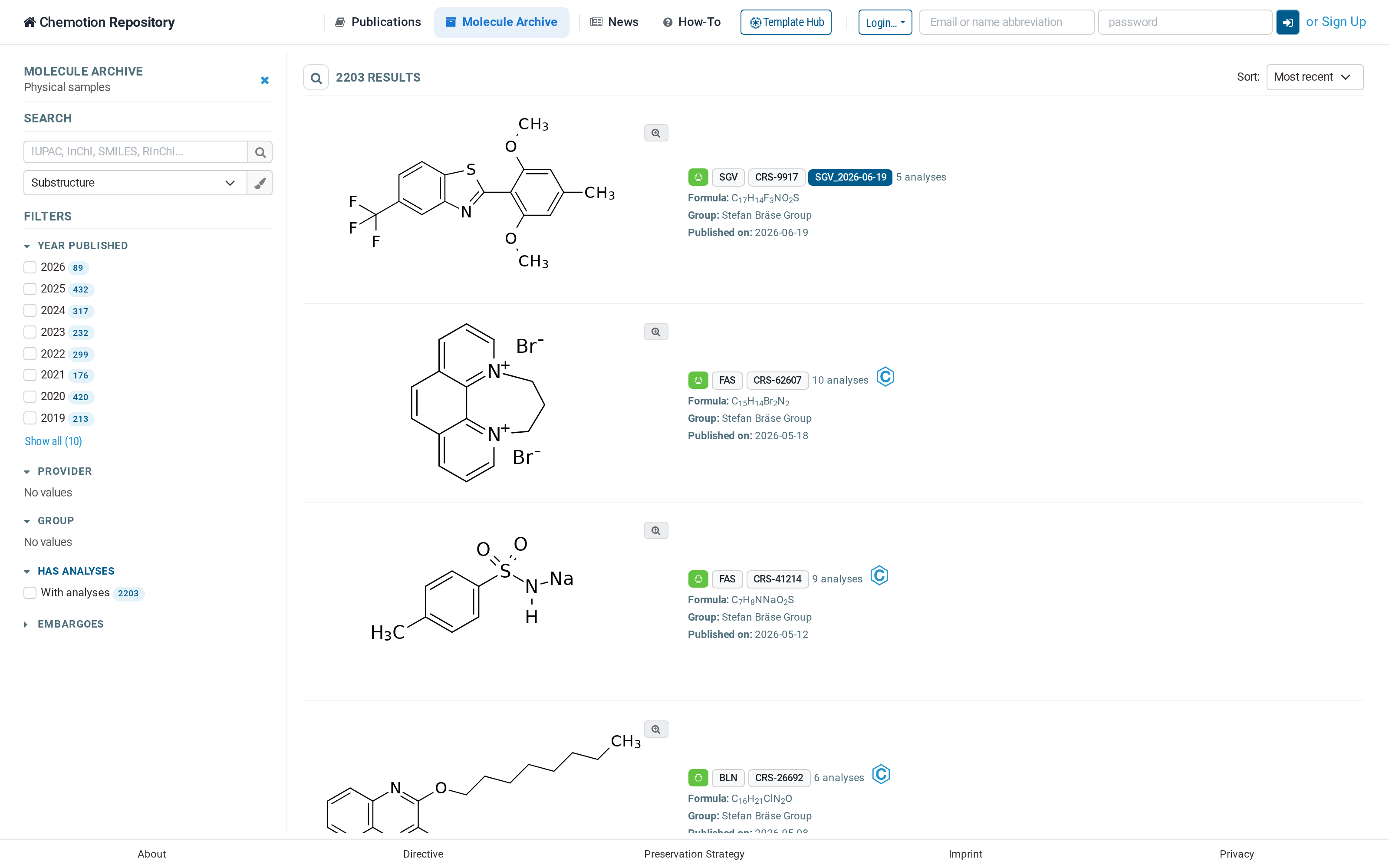
Molecule Archive — physical samples, browsed the same way
| Filter | What it narrows by |
|---|---|
| Year published | year the compound was published |
| Provider | who provides the physical sample |
| Group | the research group the compound belongs to |
| Has analyses | whether analytical data is attached |
| Embargoes | the embargo bundle the entry was released with |
A result here shows the sum formula, the group and the publication date, and links across to the Compound Platform entry for the compound.
Opening a record
Selecting a result opens it in a split view: the result list stays on the left, and the record's details fill the right-hand side.
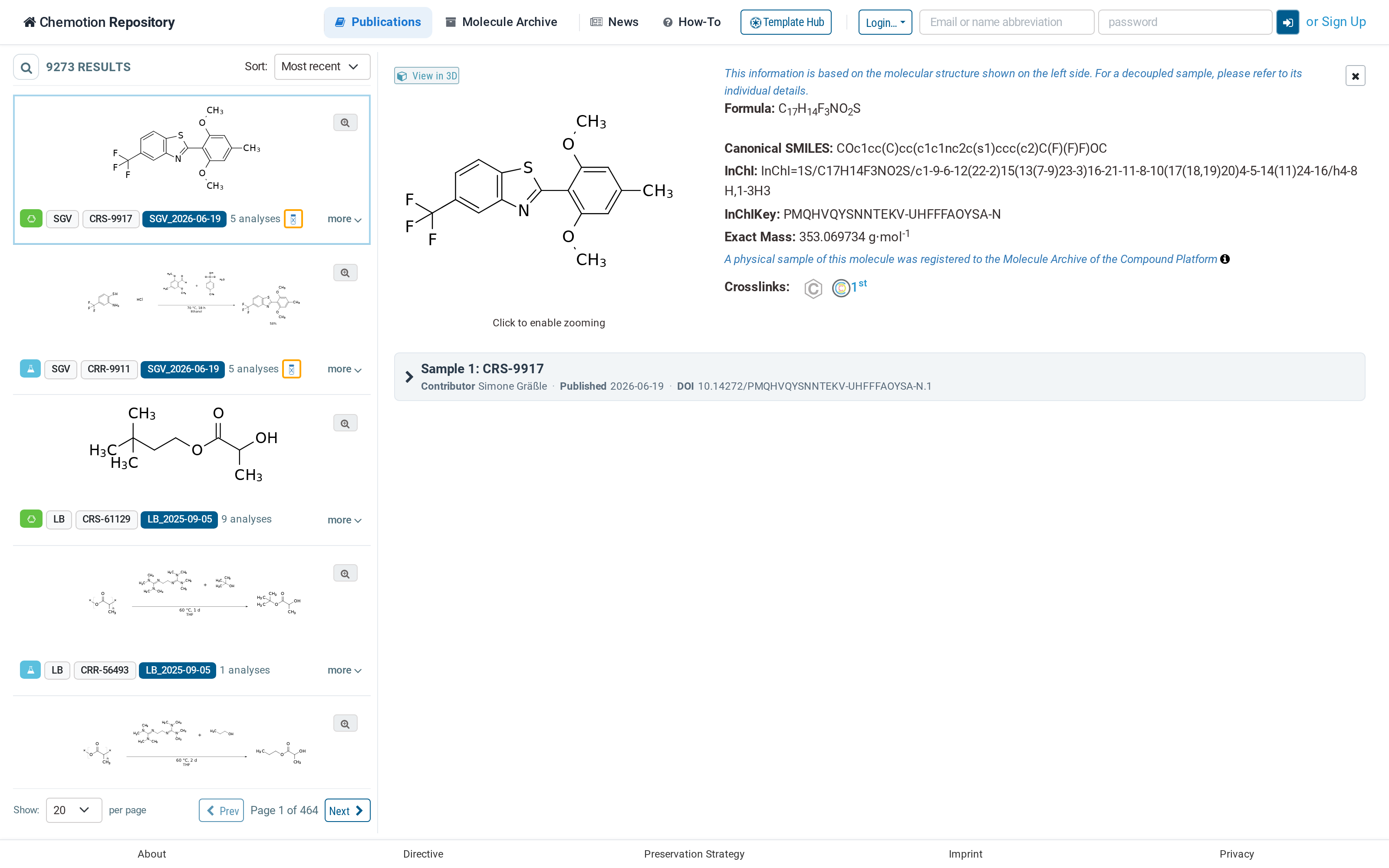
A published record, opened from the result list
The detail pane carries the molecular identifiers (formula, canonical SMILES, InChI, InChIKey, exact
mass), the crosslinks to external services, and — for records that carry a 3D structure — the
View in 3D button described under 3D Viewer. Expanding the sample section below reveals
its DOI, the analyses with their individual DOIs, the datasets, the literature references, and the
download options (Download ZIP and RDF Data).
Version 3 also places a QR code on the detail page. It encodes the address of the published page, so the record can be opened on a phone or printed onto a poster, a slide or a lab notebook page.