New Entry & Quick Submission
Version 3 added a New Entry button to the welcome page. It opens a dialog that both explains how a submission travels through the repository and offers three ways to start one — including a quick submission wizard that deposits a single characterized compound without opening the ELN.
Signing in is required for New Entry to appear.
The walkthrough below runs through the whole dialog — the four stages, the three routes, and each step of the quick wizard. It stops short of submitting.
New Entry, from the welcome page through to the analyses step
How a submission works
The dialog opens with a short summary of the path every submission takes:
- Draft in My Data — the entry is saved to the contributor's own collection, where the structure, properties and analyses can be refined further.
- Submit for review — the entry is handed over to the Chemotion reviewers.
- Review — the reviewers check completeness, data quality and metadata, then approve the entry or return it to the contributor.
- Publish with a Chemotion ID — only entries that pass review are published and receive a citable identifier.
Once submitted, the entry is locked and cannot be edited. If changes are needed, the reviewer sends it back to the contributor for modification — see Review Process.
Three ways to start
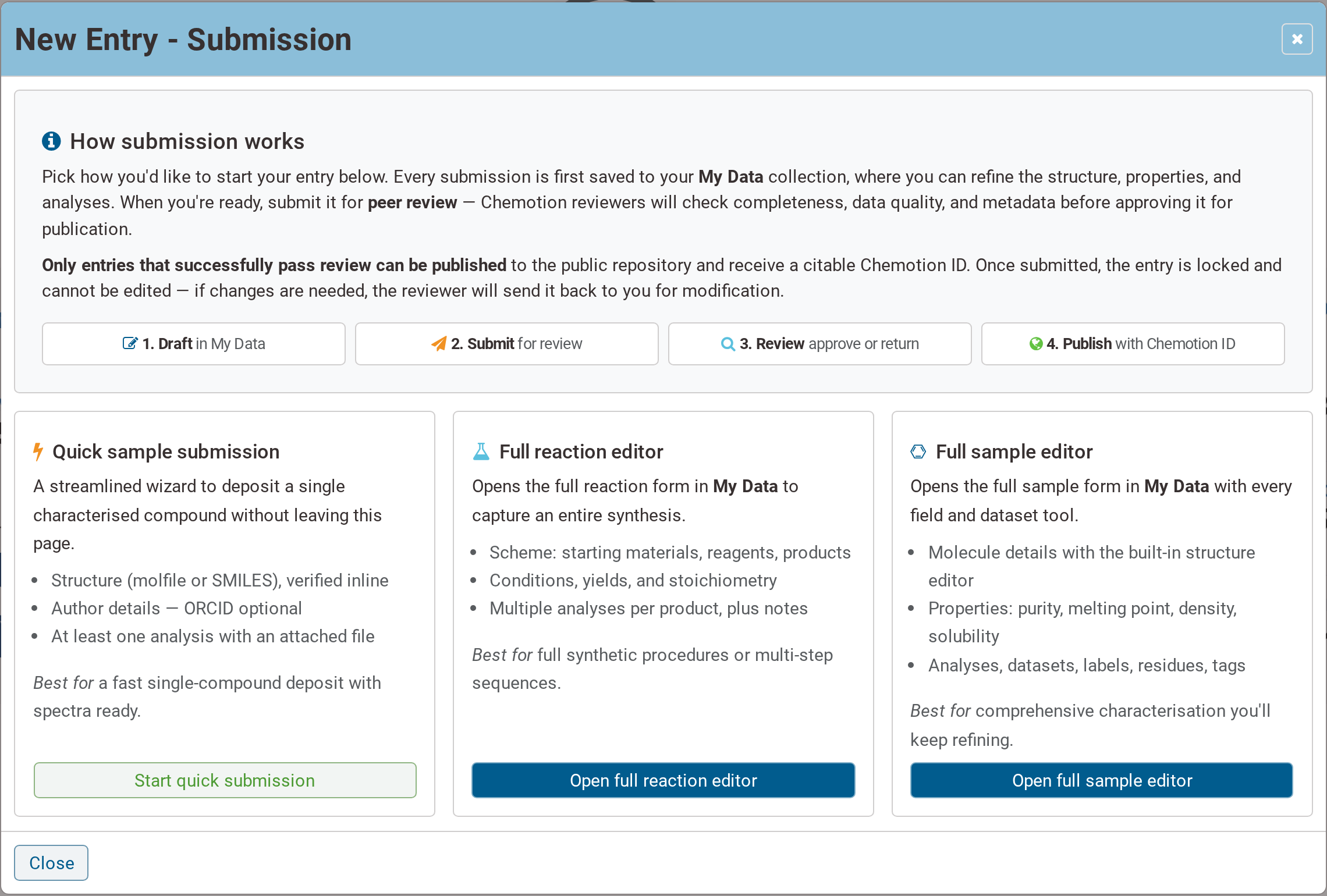
New Entry — pick how to start
| Route | What it opens | Best for |
|---|---|---|
| Quick sample submission | a three-step wizard, right on the welcome page | a fast single-compound deposit when the spectra are ready |
| Full reaction editor | the complete reaction form in My Data | full synthetic procedures or multi-step sequences |
| Full sample editor | the complete sample form in My Data | comprehensive characterization that will keep being refined |
The two full editor routes lead into the familiar forms described under Making a New Entry. The rest of this page covers the quick wizard.
Quick submission, step by step
The wizard has three stages — Sample, Author and Analyses — shown as breadcrumbs at the top of the dialog. A stage turns green once it is complete.
Step 1 — Sample
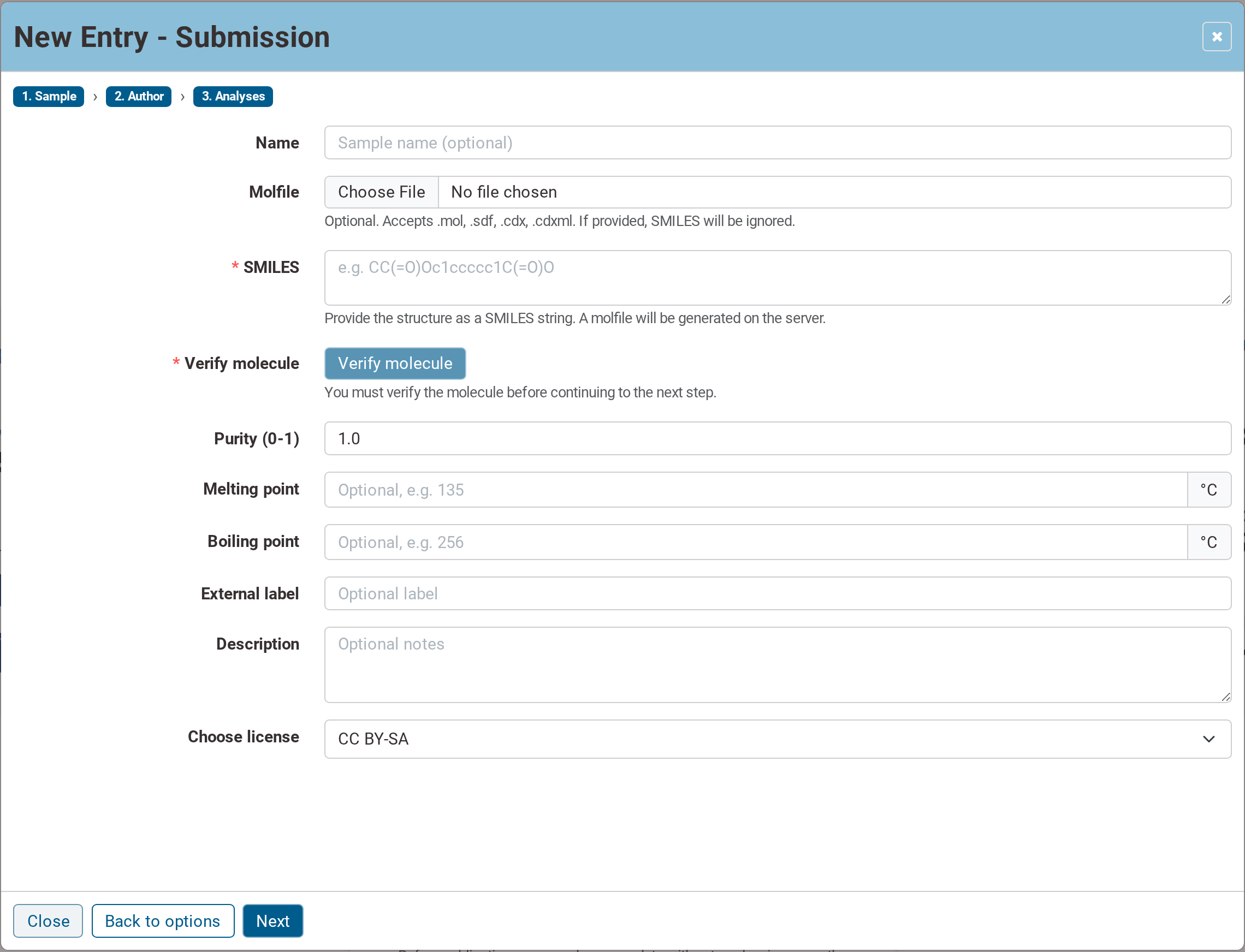
Step 1 — the structure and its basic properties
Provide the structure in one of two ways:
- upload a molfile —
.mol,.sdf,.cdxor.cdxml, including a ChemDraw file, or - type a SMILES string, from which the server generates a molfile.
If a molfile is supplied, the SMILES field is ignored.
Verify molecule must be pressed before continuing. The server resolves the structure and reports back the sum formula, the exact mass and the molecular weight, so the structure can be confirmed to have been read as intended.
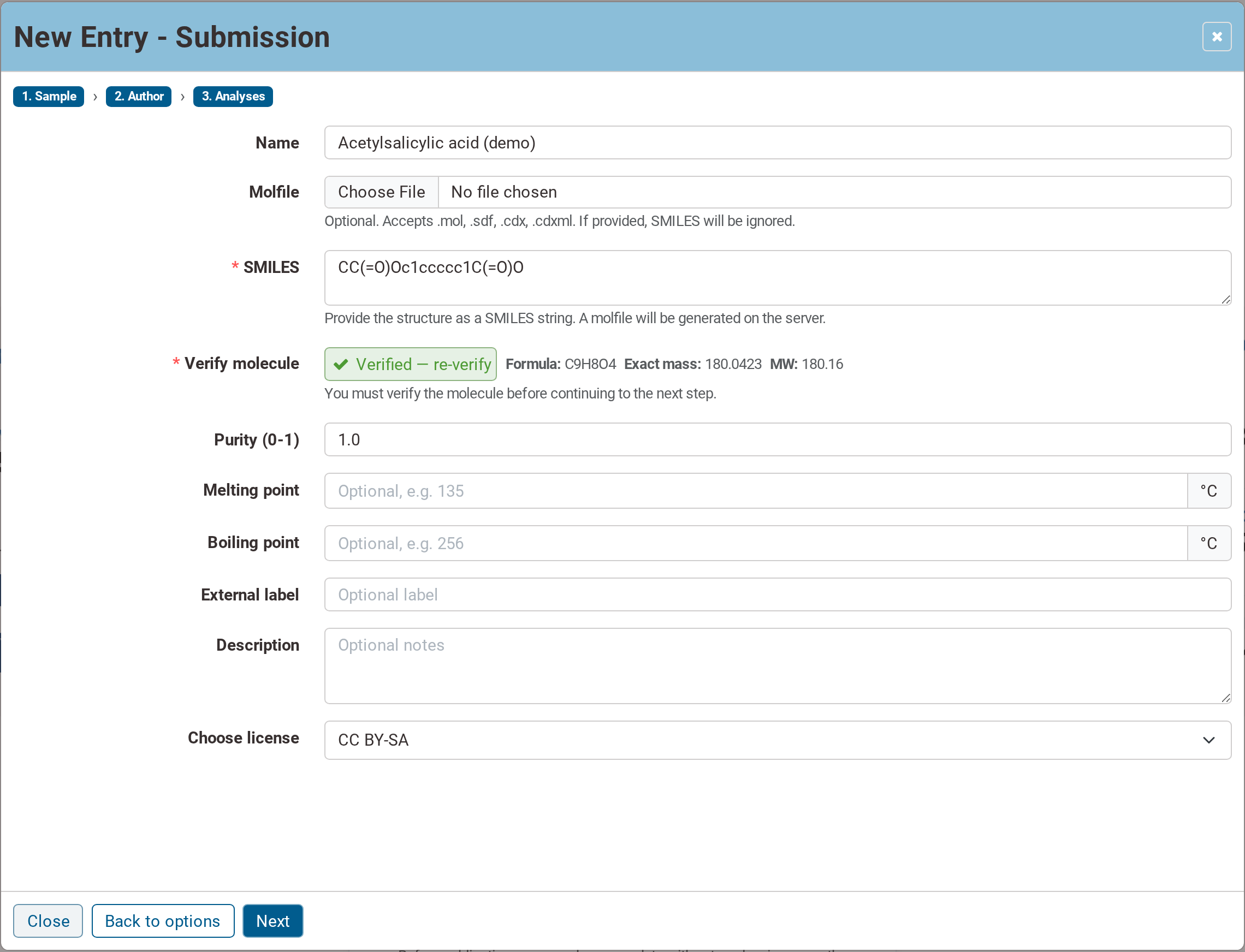
After verification the structure is confirmed
The remaining fields on this step are optional except the license: purity (0–1, defaulting to 1.0), melting point and boiling point in °C, an external label, a free-text description, and the license the data is published under. Choose the license carefully and in accordance with the rules of the institution — the options are explained in the FAQ.
Step 2 — Author
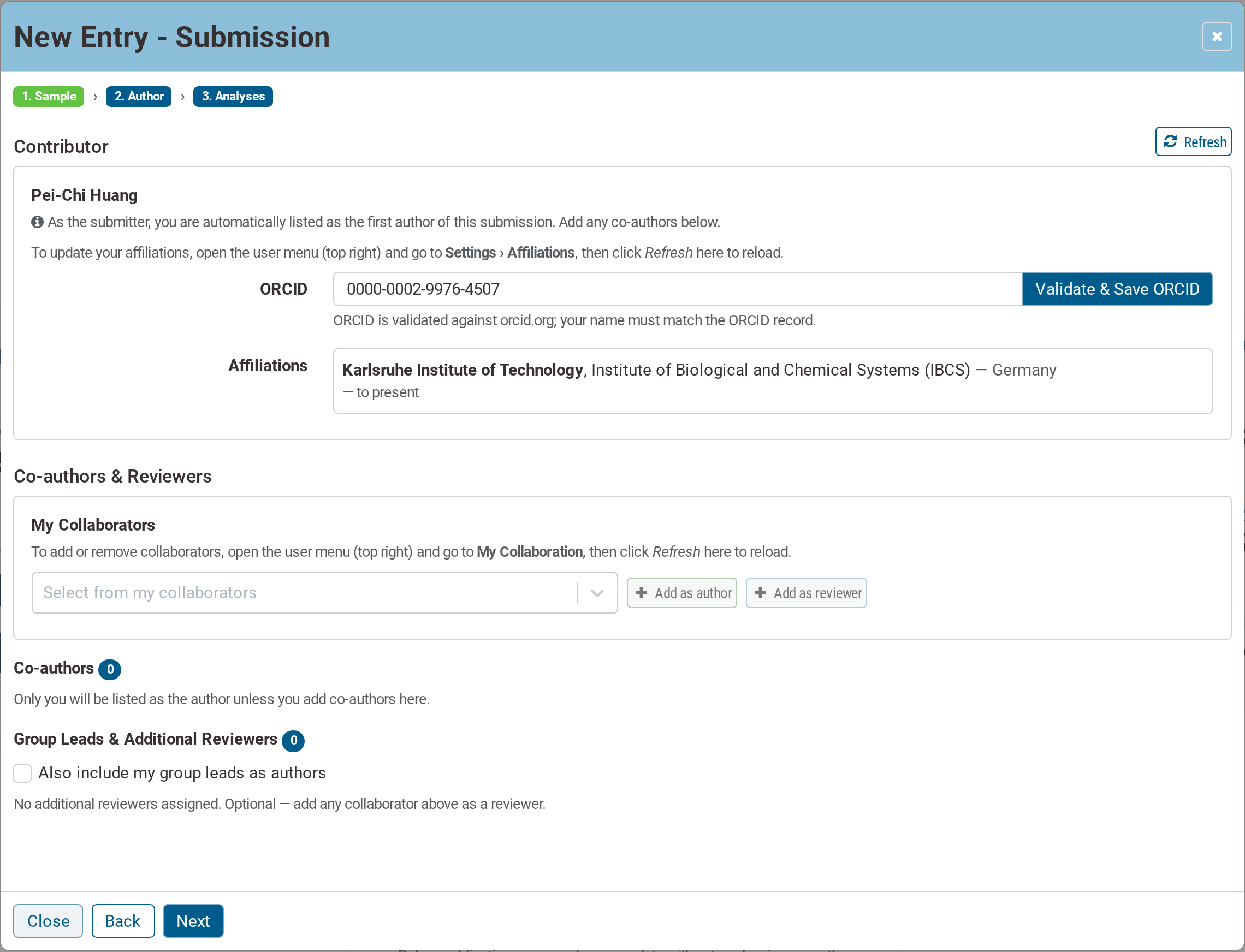
Step 2 — contributor, ORCID, affiliations, co-authors and reviewers
As the submitter, the contributor is always listed as the first author of the submission. Co-authors are added after them.
This step shows the contributor's ORCID and affiliations as they are currently recorded. The ORCID is validated against orcid.org, and the account name must match the ORCID record. Affiliations are maintained under Settings › Affiliations in the user menu; the Refresh button reloads them into the dialog without losing what has already been entered.
Co-authors and reviewers are picked from My Collaborators and added with Add as author or Add as reviewer. Only people already on the collaborator list can be selected, so they need to be added beforehand — see Add your collaborators. The Also include my group leads as authors checkbox adds the group lead(s) configured under Assign Group Lead.
Step 3 — Analyses
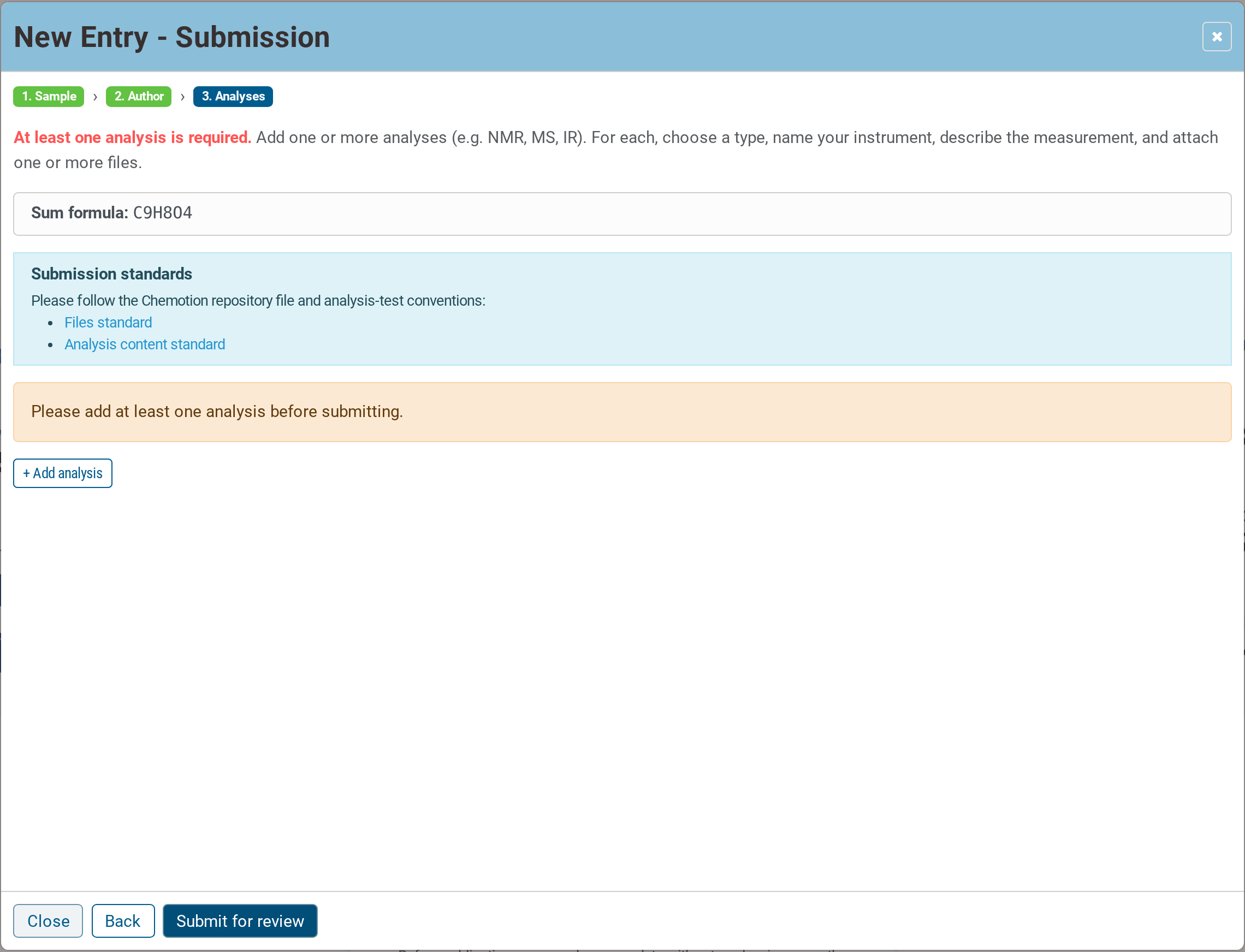
Step 3 — at least one analysis is required
At least one analysis with an attached file is required. The step links to the repository's file standard and analysis content standard — please follow them, as the review checks against these conventions.
Press + Add analysis to open the form for one analysis:
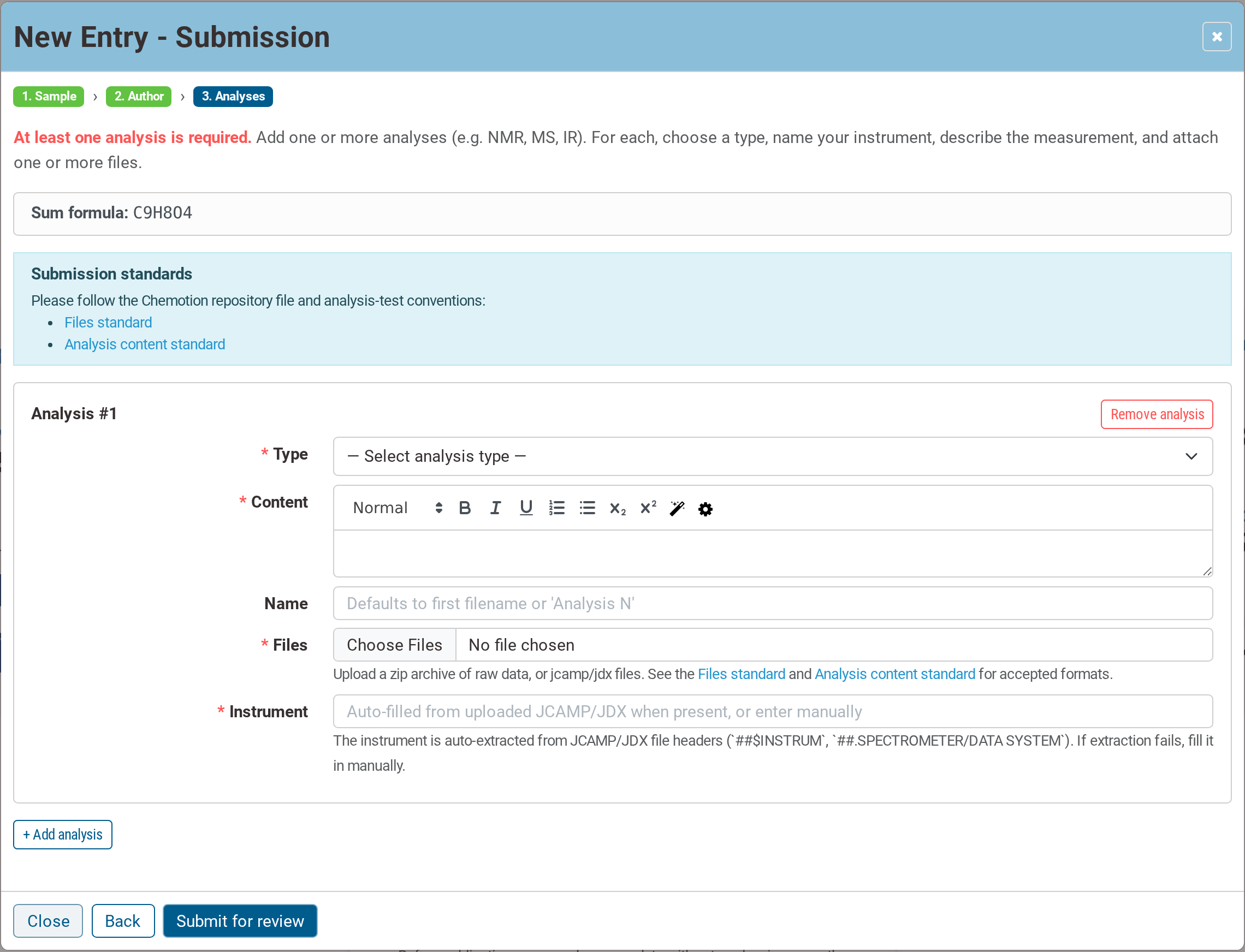
One analysis: type, content, files and instrument
| Field | Notes |
|---|---|
| Type | the analysis method, chosen from the ontology list — required |
| Content | the description of the measurement, with a rich-text editor — required |
| Name | optional; defaults to the first filename |
| Files | a zip archive of raw data, or JCAMP/JDX files — required |
| Instrument | auto-extracted from the JCAMP/JDX headers where present, otherwise entered by hand — required |
Add as many analyses as the compound needs, then press Submit for review to hand the entry over. From here it follows the normal review process.